
You open your own website on your phone, wait for the page to appear, and wonder how many customers gave up first. This guide shows how to speed up WordPress site pages the way our team does it: test first, find the real cause, then fix the few things that matter. Every target below comes from Google’s own documentation, checked in September 2026.
Last updated 14 September 2026. Targets checked on web.dev, Google’s PageSpeed Insights documentation and WordPress.org.
Quick answer
To speed up WordPress site pages, test one page in PageSpeed Insights, then fix what it flags in this order: images, page caching, plugins and scripts, and last the server.
Still asking why is my WordPress site slow after those fixes? A heavy theme or a slow server is the usual cause, and both need a bigger change.
Short on time? Book a free call and our team will read your speed report with you.
Speed up WordPress site pages: the targets that count
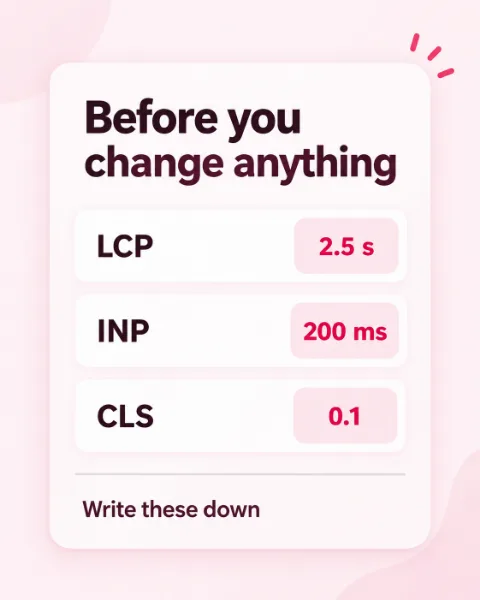
2.5 s
Google’s “good” limit for Largest Contentful Paint (LCP), the moment your main content appears
200 ms
Google’s “good” limit for Interaction to Next Paint (INP), how fast a page reacts to a tap or click
0.1
Google’s “good” limit for Cumulative Layout Shift (CLS), how much the page jumps while it loads
800 ms
PageSpeed Insights’ “good” limit for Time to First Byte (TTFB), your server’s first reply
8%
more sales for Vodafone after a 31% better LCP, in Google’s web.dev case study
What makes a WordPress site slow
Why is my WordPress site slow? The usual causes
Why is my WordPress site slow when it felt quick at launch? A slow site seldom has one big fault. You usually find a stack of small ones: photos straight off a phone, no page caching, a plugin you forgot about, and a server that needs a moment before it replies.
WordPress builds each page when someone asks for it. It runs PHP code, reads your content from the database and loads every active plugin before your visitor sees anything. Page caching skips most of that work, so it is one of the first ways to speed up WordPress site pages.
A free test shows most of these causes, and many of the fixes that speed up WordPress site pages take an afternoon, not a rebuild.

WordPress site slow? Start with this table
What slows a site, how you spot it and how to fix it
Searching for how to improve WordPress website speed? Find the symptom that sounds like your site. The fix on the same row is your first move to speed up WordPress site loading, and the steps further down explain each one.
What slows a WordPress site and how to fix it, checked 14 September 2026
What slows the site
How you spot it
How to fix it
Oversized images
PageSpeed Insights flags large images, and LCP is over 2.5 seconds
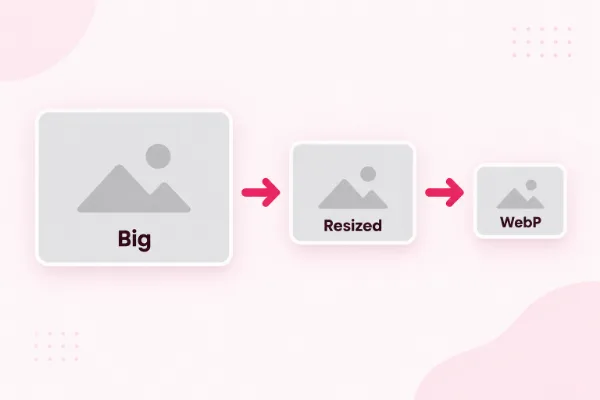
Resize, compress and save as WebP
No page caching
Every visit is slow, even a repeat one, and TTFB is over 800 ms
Turn on a caching plugin or your host's own cache
Too many or heavy plugins
The site slowed right after a plugin install, and the dashboard drags too
Delete what you don't use and test the rest one at a time
Third-party scripts
Chat widgets, trackers, video and map embeds load before your content
Remove extras and load video and maps only when needed
A heavy theme or page
Sliders, animations and dozens of sections on one page
Trim the page, or move to a lighter theme
An old PHP version
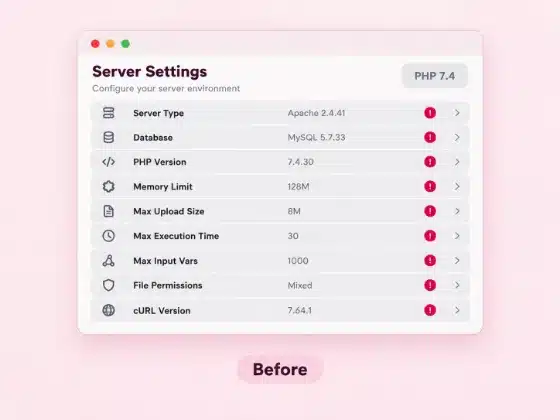
Tools › Site Health › Info shows the version your server runs
Ask your host for PHP 8.3 or newer
A cluttered database
Years of revisions, spam comments and leftovers from deleted plugins
Clean it up after a full backup
A slow server
TTFB stays high even with caching on
Ask for more CPU and memory, or move to a faster host
Test before you improve WordPress site speed
Find the cause in five minutes with free tools
If you keep asking why is my WordPress site slow, test before you touch a setting. A five-minute baseline shows which fix will pay off, and it proves later that the fix worked.
1
Test two pages
Run your home page and one busy inner page through PageSpeed Insights, and check the mobile result as well as desktop.
2
Read the real-visitor data first
The top section shows how real visitors experienced the page over the last 28 days. The lab test below it is a single test run, handy for spotting problems.
3
Good means LCP within 2.5 seconds, INP of 200 ms or less and CLS of 0.1 or less, for at least 75% of visits.
4
Check the whole site in Search Console
The Core Web Vitals report uses real-world visit data and groups similar pages, so you see which groups need work.
5
Open Tools › Site Health
WordPress lists critical issues here, and the Info tab shows your PHP version and server details.
Pro tip
Save a screenshot of each report before you change anything. Then change one thing at a time and test again. That is how you speed up WordPress site pages without guessing.
The lab score counts 90 or above as good. Chase the real-visitor numbers first, though, because those are what your customers live with every day. They also show whether your work to speed up WordPress site pages paid off.
The fix list, in the order we work
Speed up WordPress site pages in 10 steps
We work down this list whenever a client asks us to speed up WordPress site pages. The first steps cost the least and need no developer. The last ones touch the server, so take a backup before you start them.
1
Resize and compress your images
Upload each photo at the width it shows on screen, not straight off the camera.
2
Save images as WebP
WordPress accepts WebP uploads, and WebP files are around 30% smaller on average than JPEG or PNG.
3
Turn on page caching
A caching plugin such as the free WP Super Cache serves ready-made copies of your pages.
4
Delete plugins you don't use
Deactivate and delete anything unneeded, then test the site again.
5
Trim third-party scripts
Remove chat widgets, trackers and embeds that no longer earn their place.
6
Lighten your heaviest pages
Cut sliders, autoplay video and sections nobody scrolls down to.
7
Keep everything current
Update WordPress, your theme and your plugins, with a backup before each round.
8
Move to a current PHP version
WordPress.org recommends PHP 8.3 or greater. Your host can switch it.
9
Clean the database
Remove old revisions, spam comments and plugin leftovers, after a full backup.
10
Check the server
If TTFB stays above 800 ms with caching on, a stronger hosting plan is the next way to improve WordPress site speed.
Rather have someone speed up WordPress site pages for you?
Our one-off speed fix covers images, caching and plugin cleanup for $50, on sites we did not build. Want to talk it through first?
Steps 1 and 2: images
Improve WordPress site speed, starting with your images
Photos are often the heaviest files on a small business page, so they are the quickest place to speed up WordPress site loading. A photo from a phone is usually far wider than the space it fills, and your visitor downloads every extra pixel.
Resize each image to the largest width it shows at, compress it, then save it as WebP. The WordPress core team puts WebP files at around 30% smaller than the same image as a JPEG or PNG.
WordPress also adds lazy loading to images that have a width and height set, so pictures further down wait until your visitor scrolls. Your top image is different. If it is the biggest thing on the first screen, let it load straight away. Google’s own tests found that lazy loading images at the top can slow LCP.
Pro tip
The quickest win in how to improve WordPress website speed: fix the images you already have, not only new uploads. Start with your home page and the pages new visitors land on first.
Step 3: page caching
Turn on page caching, so pages are ready before visitors ask
Without caching, WordPress rebuilds the page for every visitor. A caching plugin saves a finished copy and hands that out instead, which cuts the work your server does on each visit.
WordPress.org’s own performance guide says caching can improve performance several hundred times over for fairly static pages, such as an About or Services page. That makes caching the cheapest way to improve WordPress site speed for most visitors.
Ask your host before you install one, since many hosts run their own cache and two caches can clash. If you sell online, keep the cart, checkout and My Account pages out of the cache.
A content delivery network (CDN), a set of servers in many countries, sends your images and files from a location near each visitor. It helps speed up WordPress site loading for faraway visitors, and it works well on top of page caching.

Steps 4 to 6: plugins, scripts and heavy pages
Cut the plugins and scripts that slow every page
Plugin weight matters more than plugin count. One heavy plugin can slow your site more than several small ones, so test before you blame the number. Testing first is the quickest way to speed up WordPress site pages that feel sluggish.
What you see
- The site slowed right after you installed a plugin.
- Your dashboard feels slow as well as the public pages.
- PageSpeed Insights lists scripts from chat, tracking or video tools.
- One page with a slider or map loads far slower than the rest.
What fixes it
- Deactivate plugins one at a time on a staging copy, and test after each.
- Install Query Monitor, a free plugin that narrows slow database queries down to the plugin or theme behind them.
- Delete what you don't use, instead of leaving it switched off.
- Load video and maps only when a visitor clicks or scrolls to them.
Choosing a replacement? Our roundup of free and premium WordPress plugins helps you compare options before you install, so a new plugin doesn’t undo the work.
Test, fix one thing, then test again. You speed up WordPress site pages by repeating that loop.
Steps 7 to 10: behind the page
PHP, database and server: fix what sits behind the page
Images, caching and plugins are sorted, and you still can’t speed up WordPress site pages enough. Now look behind the page. Your server’s first reply is the clue: PageSpeed Insights counts a TTFB of 800 ms or less as good.
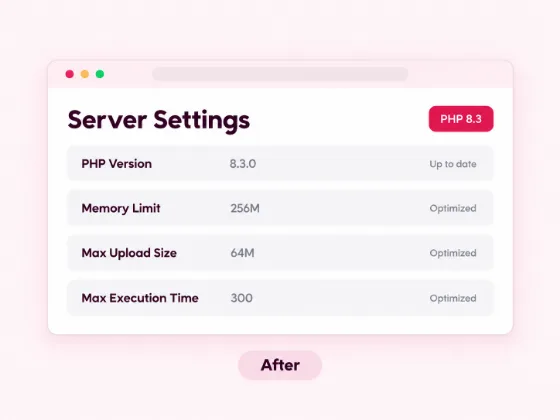
Start with PHP, the language WordPress runs on. WordPress.org recommends version 8.3 or greater, and many hosts let you switch it from the control panel. Take a backup first, then test your forms and checkout after the change.
Next, clean the database. Old post revisions, spam comments and data left by deleted plugins make it bigger than it needs to be. Take a full backup, then use a trusted cleanup plugin.
Then look at the plan itself, since a stronger server can improve WordPress site speed when caching can’t. WordPress.org’s guide says more CPU and memory, or a host with SSD or NVMe storage, can make a big difference. Our own WordPress hosting runs on NVMe storage with daily backups.
Is a heavy theme the root cause? A cleanup only goes so far. Rebuilding on a lighter setup can cost less than patching, and our website redesign team moves your old content across.
Keep it fast after the fix
How to improve WordPress website speed for good
Why is my WordPress site slow again, months after a fix? Speed slips back. New photos, new plugins and new tracking tags pile up month by month, and the site you fixed in spring feels slow by autumn. A short monthly routine keeps the work you did to speed up WordPress site pages from slipping.
1
Test the same two pages each month
Use your baseline pages, so the numbers compare.
2
Test on the day you add a plugin
You’ll know at once if the new plugin cost you speed.
3
Check Search Console's Core Web Vitals report
Look for page groups that dropped out of good.
4
Update, then test again
Keep WordPress, themes and plugins current, with a backup before each round.
5
Keep the security basics in place
Malware can slow a site as well as harm it. Our WordPress security best practices guide covers what to do.
Our WordPress website maintenance checklist lists the rest of the monthly jobs. Would you rather hand them off? Our WordPress care plans start at $49 a month.
Speed and search
Does a faster site rank higher on Google?
You want the work to pay off in search, too. Google says good Core Web Vitals, along with other page experience signals, align with what its core ranking systems seek to reward.
Speed helps a page that already answers the search well. Once you know how to improve WordPress website speed, our guide on how to improve your WordPress website covers the SEO side. Our WordPress SEO team can take it further.
Your next step
Fix it yourself, or let a team speed up WordPress site pages for you
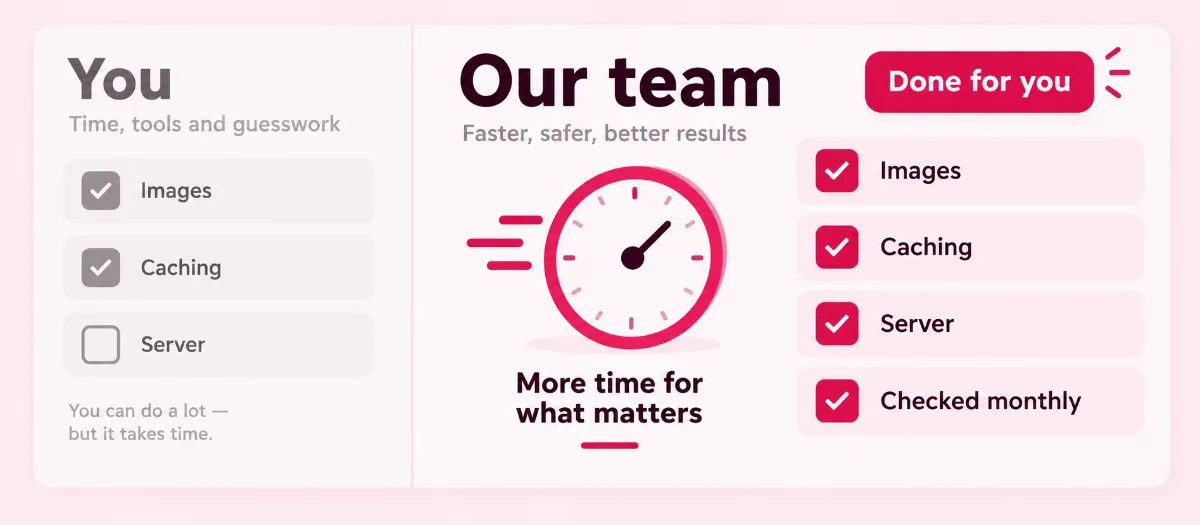
Many owners can speed up WordPress site pages themselves, with the first six steps and free tools. Server changes, theme problems and online stores carry more risk, because one wrong setting can break a checkout or a contact form.
Do it yourself if…
- Your site is small, and the test flags images and caching.
- You have a fresh backup and a quiet hour to test each change.
Our pick for busy owners
Hand it to a team if…
- Your site sells online, and checkout has to keep working.
- Your server's reply stays slow even with caching on.
- You tried the easy fixes, and the numbers didn't move.
- Your hours are worth more running the business.
WP BigBang is a WordPress-only team with 500+ websites built. Planning a new site instead? Every Business website plan includes speed optimization and security hardening from the first day.
Questions owners ask
WordPress speed questions, answered
Why is my WordPress site slow?
Usually a mix of small causes: oversized images, no page caching, heavy plugins or scripts, an old PHP version or a slow server. Run PageSpeed Insights first, and it will show where to speed up WordPress site pages first.
How do I speed up WordPress site pages without coding?
To speed up WordPress site pages with no code, resize and compress your images, turn on a caching plugin, and delete plugins you don’t use. Those three steps need no code, and you can test each one in PageSpeed Insights.
How to improve WordPress website speed on mobile?
Learning how to improve WordPress website speed on mobile starts with the mobile result in PageSpeed Insights. Then fix what it flags. Mobile visitors feel heavy images, big sliders and extra scripts most, so trim those first and keep the top image out of lazy loading.
What is a good load time for a WordPress site?
Aim for Google’s “good” Core Web Vitals: LCP within 2.5 seconds, INP of 200 ms or less and CLS of 0.1 or less, for at least 75% of visits.
Do too many plugins make a WordPress site slow?
They can, but weight matters more than count. Delete what you don’t use, then switch the rest off one at a time on a staging copy to find the slow one.
Will better hosting improve WordPress site speed?
Yes, when the server is the bottleneck. If your TTFB stays above 800 ms with caching on, more CPU and memory or faster SSD or NVMe storage can make a big difference.
Does site speed affect Google rankings?
It plays a part. Google says good Core Web Vitals align with what its core ranking systems seek to reward, but your content still has to answer the search.
How often should I test my site speed?
To keep the work you did to speed up WordPress site pages, test once a month on the same pages, and again on any day you add a plugin, change the theme or add a new tracking script.